
How to create knockout questions
Knockout questions are used to automatically screen candidates based on whether they meet specific minimum requirements. In Willo, you can create knockout-style questions by using Multiple Choice or Checkbox questions with correct answers, then enabling Benchmark to automatically reject candidates who do not meet your required pass percentage.
This is useful when you need to check essential requirements before reviewing full responses, such as certifications, eligibility, location, experience, or role-specific knowledge.
How knockout questions work in Willo
Willo does not require a separate “knockout question” question type. Instead, you can create the same outcome by combining two features:
- Multiple Choice or Checkbox questions
These allow you to give candidates predefined answer options.
-
Correct answers
You can mark one or more options as correct for each question.
-
Benchmark automatically scores candidates based on their correct answers and can reject candidates who fall below your chosen pass percentage.
Benchmark only includes Multiple Choice and Checkbox questions in its scoring. Open-ended and video response questions are not included in Benchmark calculations.
Step 1: Create a Multiple Choice or Checkbox question
When building or editing your assessment:
- Go to the Questions section.
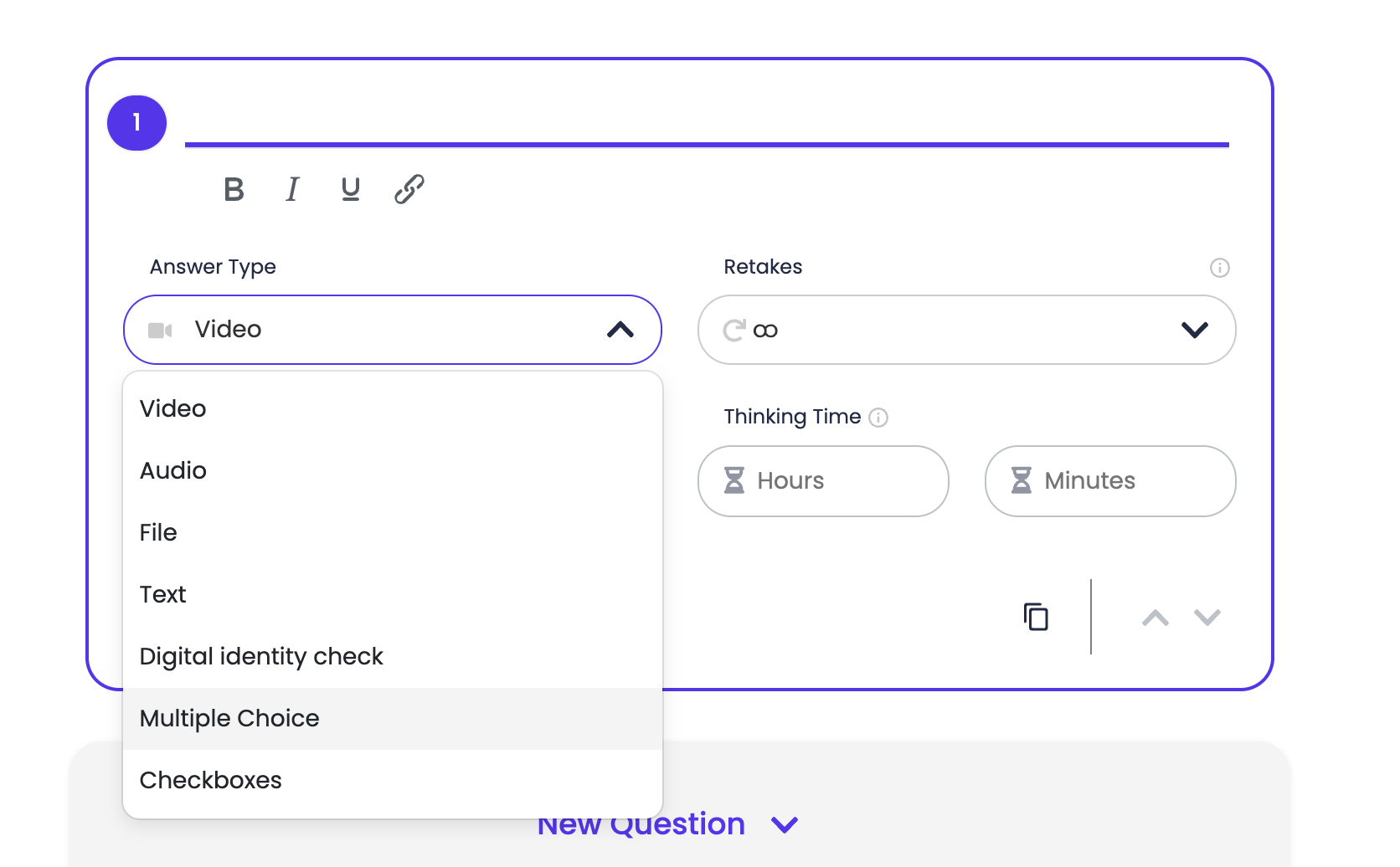
- Select Answer Type.
- Choose Multiple Choice.
- Add your question.
- Add the available answer options.
- Choose either:
- Radio options, where candidates can select one answer.
- Checkbox options, where candidates can select multiple answers.
Willo’s Multiple Choice questions support predefined options and can be used to assess knowledge, suitability, or specific requirements in a structured way.
Step 2: Set the correct answer
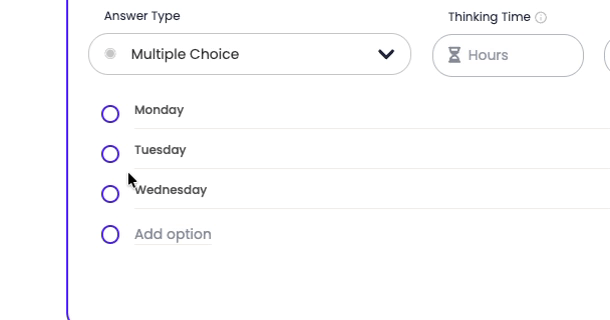
For each knockout-style question, mark the answer or answers that should be treated as correct.
For example:
Question: Do you currently hold a valid right to work in the UK?
Correct answer: Yes
Or:
Question: Which certifications do you currently hold?
Correct answers: Required Certification A, Required Certification B
Correct answers are required for Benchmark to score the question.
Step 3: Enable Benchmark
Once your scored questions are set up, use Benchmark to decide the minimum score a candidate must achieve.
When creating or editing your assessment:
- Go to the final step of the assessment setup.
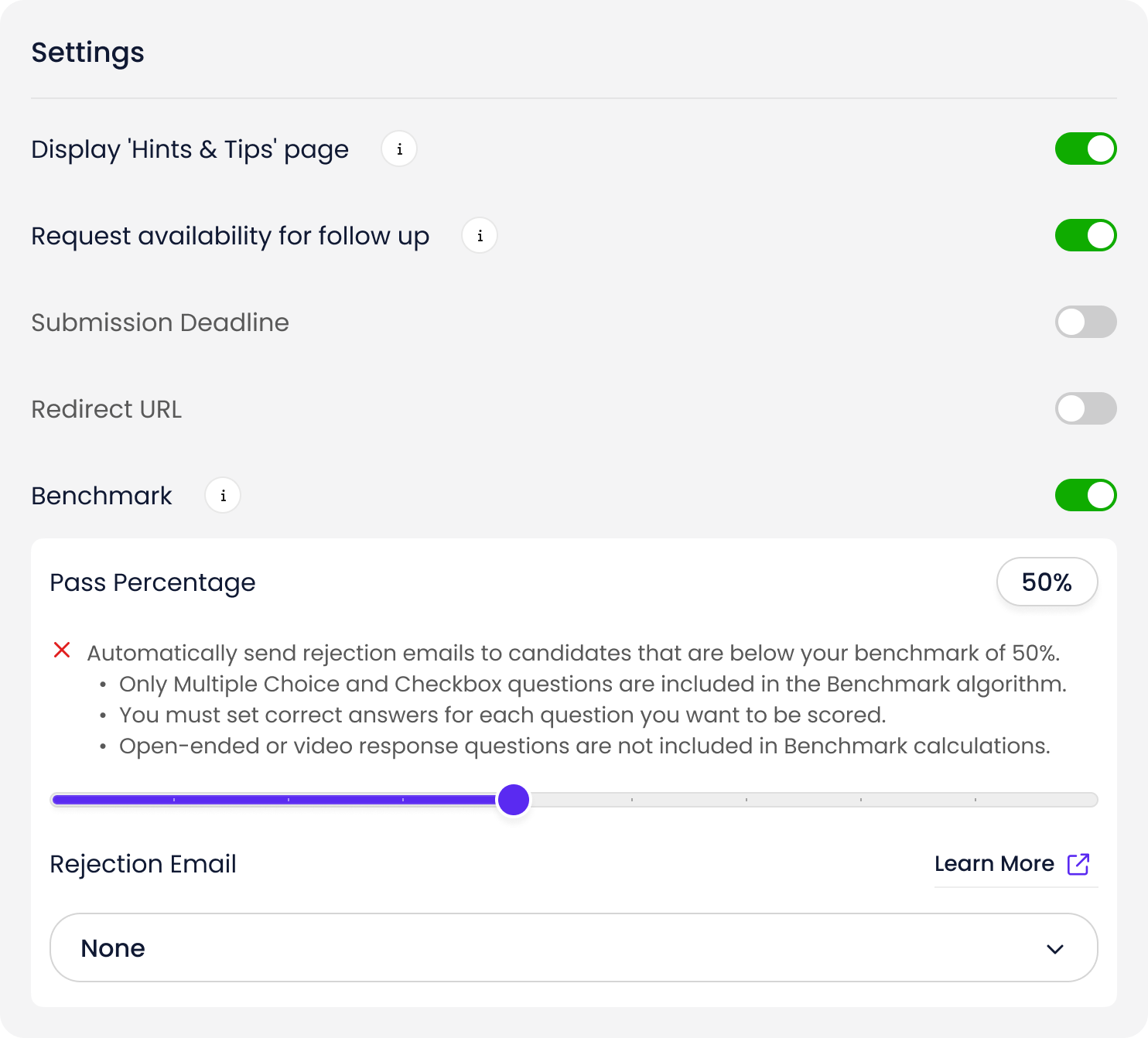
- Find the Benchmark slider.
- Set your required Pass Percentage.
- Candidates who meet or exceed this score will move forward.
- Candidates who score below this threshold will be automatically rejected and receive your chosen rejection email.
For example: If you set the Benchmark pass percentage to 80%, a candidate who answers 8 out of 10 scored questions correctly will pass, while a candidate who answers 7 out of 10 correctly will be automatically rejected.
Example: Creating a single knockout question
If you want one question to determine whether a candidate should continue, create one Multiple Choice question and set the Benchmark pass percentage to 100%.
Example question:
Are you available to work weekends?
Answer options:
- Yes
- No
Correct answer:
Yes
Benchmark pass percentage:
100%
In this example, candidates who answer Yes pass the Benchmark. Candidates who answer No are automatically rejected.
Example: Creating multiple knockout questions
You can also use several scored questions together.
For example:
- Do you have the right to work in this country?
- Do you hold the required licence?
- Are you available for the required shift pattern?
- Do you have at least 2 years of relevant experience?
If each question has a correct answer, Benchmark can calculate the candidate’s score across all included Multiple Choice and Checkbox questions.
Set the pass percentage depending on how strict you want the screening to be.
For strict knockout screening, use 100%.
For more flexible screening, use a lower percentage, such as 75% or 80%.
Important things to know
Benchmark only scores Multiple Choice and Checkbox questions.
You must set correct answers for each question you want Benchmark to include.
Video, audio, text, or open-ended questions are not included in the Benchmark score.
Candidates who fall below the Benchmark pass percentage will be automatically rejected and receive your selected rejection email.
You can still review auto-rejected candidates if needed. Willo allows you to filter or export them before automated emails are sent within 24 hours.
Best practices for knockout questions
Use knockout questions only for genuine minimum requirements. Avoid using them for areas that require judgement, context, or human review.
- Keep the wording clear and specific.
- Avoid ambiguous options such as “maybe”, “not sure”, or “it depends” unless they are intentional.
- Use inclusive language and make sure the question directly relates to the role.
- Test the assessment before sending it to candidates to make sure the correct answers and Benchmark pass percentage work as expected.
Summary
To create knockout questions in Willo, use Multiple Choice or Checkbox questions, assign the correct answers, and then enable Benchmark to automatically reject candidates who do not meet your required pass percentage.
This helps you screen candidates consistently, save time, and focus on applicants who meet your minimum requirements.