
Screen recording
How to use screen recording questions in your assessments
This article explains how screen recording questions work and how to add them to an assessment. It is for employers and hiring teams who want to see how candidates work through a task on their screen.
What is a screen recording question?
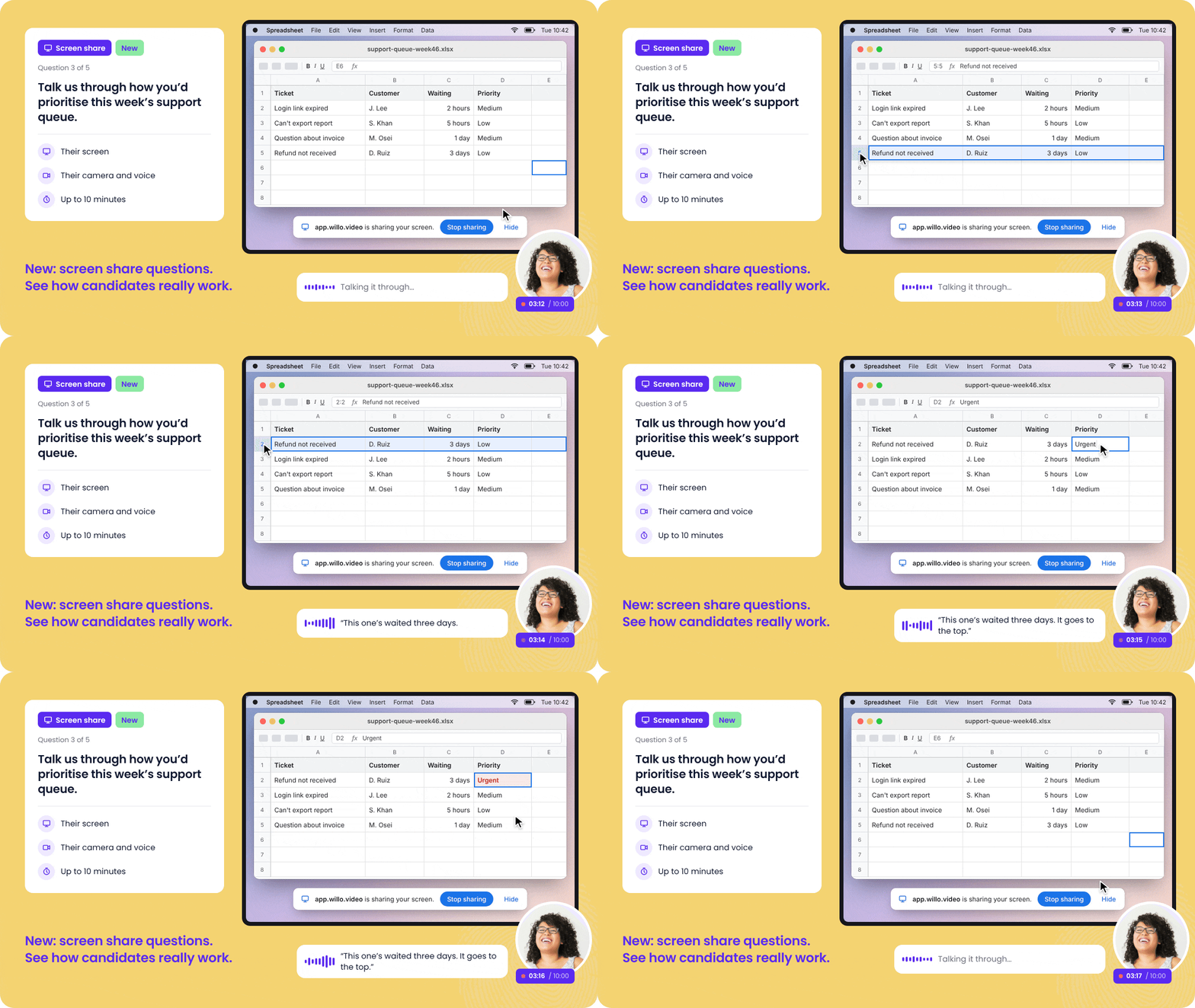
Screen recording is an answer type you can choose for any question in your assessment. Candidates answer by recording their screen. Their microphone is recorded too, so they can talk through what they are doing.
This is useful when you want to see how a candidate works, not just what they say. For example:
- Walking through code, a spreadsheet, or a design file
- Demonstrating how they use a tool or system
- Talking through a portfolio, a presentation, or a past project
- Completing a short practical task while explaining their approach
How to add a screen recording question
- Open your assessment and go to the Questions step.
- Add a new question, or select an existing one.
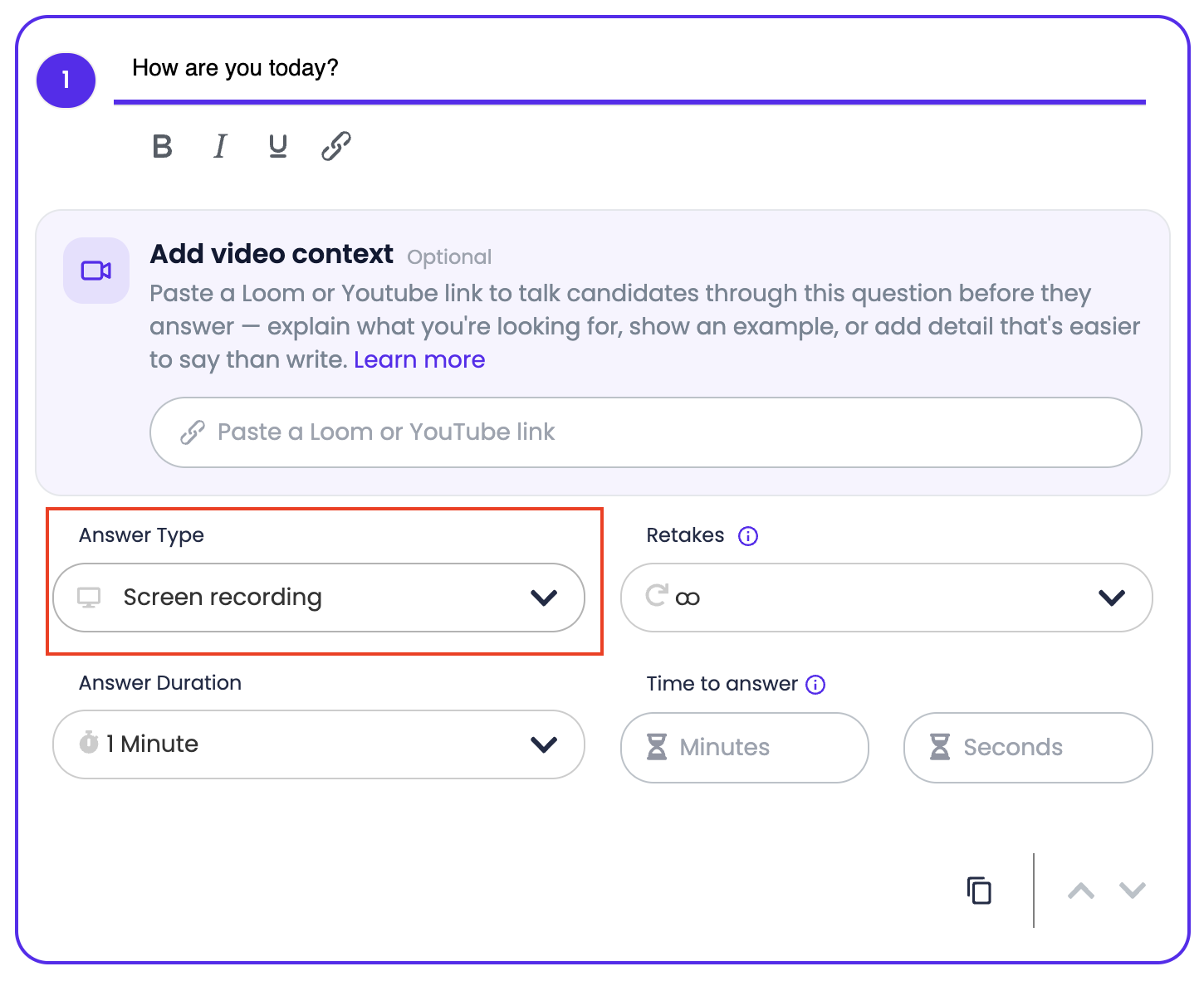
- In the answer type options, select Screen Recording.
- Write your question. Tell candidates clearly what you would like them to show on screen.
- Set the number of retakes you want to allow.
- Save your changes, then publish your assessment as usual.
What candidates will see
When candidates reach a screen recording question, they:
- Select Record Screen.
- Choose what to share from their browser’s pop-up. This can be a browser tab, a single window, or their entire screen.
- Record their answer while speaking into their microphone.
Please note:
- Candidates cannot switch to a different screen or window during a recording. They choose what to share before recording starts.
- If a candidate cancels the share pop-up, it does not count as one of their attempts.
- Before their final attempt, candidates see the same last-attempt message they see for video and audio questions.
- Some computers, especially Mac computers, ask candidates to allow screen recording in their system settings the first time.
Device requirements
Screen recording works on desktop and laptop computers in a modern web browser.
Screen recording is not supported on mobile phones or tablets. If your assessment includes a screen recording question, we suggest telling candidates in your invitation email that they will need a computer to complete it.
Reviewing screen recording responses
Screen recording responses appear on the candidate response page, just like video responses. You can play them back, score them with your scorecard, add comments, and share them with colleagues.
Important: Insights scores only what the candidate says. It does not look at what is shown on screen. Ask candidates to explain their answer out loud as they record.
This means a candidate who completes a task well but does not explain it out loud may receive a lower Insights score than expected. To get the most from these features:
- Include this request in the question text itself, for example: “Please explain each step out loud as you go.”
- Always watch the recording before you make a decision.
- Treat Insights as supporting information, not a final decision.
Things to know before you start
- Tab-switching detection is turned off for screen recording questions, because candidates may need to move between tabs or windows to complete the task.
- Suggested questions do not create screen recording questions. If you build your questions from Blueprint, you will need to change the answer type on a question yourself.
- The candidate’s camera is not recorded during a screen recording question. Only their screen and microphone are captured.
Best practices
- Keep tasks focused. A clear, specific task is easier for candidates to complete and easier for you to compare.
- Tell candidates what to have open before they start, such as a file, a website, or a tool.
- Allow at least one retake. Sharing a screen can be new to some candidates.
- Remind candidates to close anything private (like email or chat apps) before they share their entire screen. You could also suggest they share only one tab or window.
- Use the same scorecard for every candidate so evaluations stay consistent.
Need more help?
If you need further assistance, contact our support team using the chat icon in the bottom-right corner of any page. You can also chat with Wilma, our AI support agent, for immediate assistance.