
Reveal & Respond for Video & Audio Questions
This article explains how employers can enable and configure Reveal and Respond, a feature that limits candidates to a single, unrehearsed attempt on video or audio questions. It is for employers and recruiters setting up assessments.
What Reveal and Respond does
Reveal and Respond hides a question from candidates until they are ready to answer it. Once revealed, the candidate sees a countdown, then must record their response in one attempt.
This helps reduce the risk of candidates using AI tools or pre-planned answers, since there is no opportunity to preview the question or retake the recording.
Before you begin
If you suspect that candidates may be reading scripts, or asking others for help then please contact us so we can enable Reveal & Respond for you.
Once enabled, the option becomes available on a per-question basis when creating or editing an assessment.
Reveal and Respond only applies to video and audio questions. It is not available for other question types.
Turning on Reveal and Respond for a question
- Go to Create assessment or Edit assessment.
- Progress to the Questions page.
- Select a question with the response type set to Video or Audio.
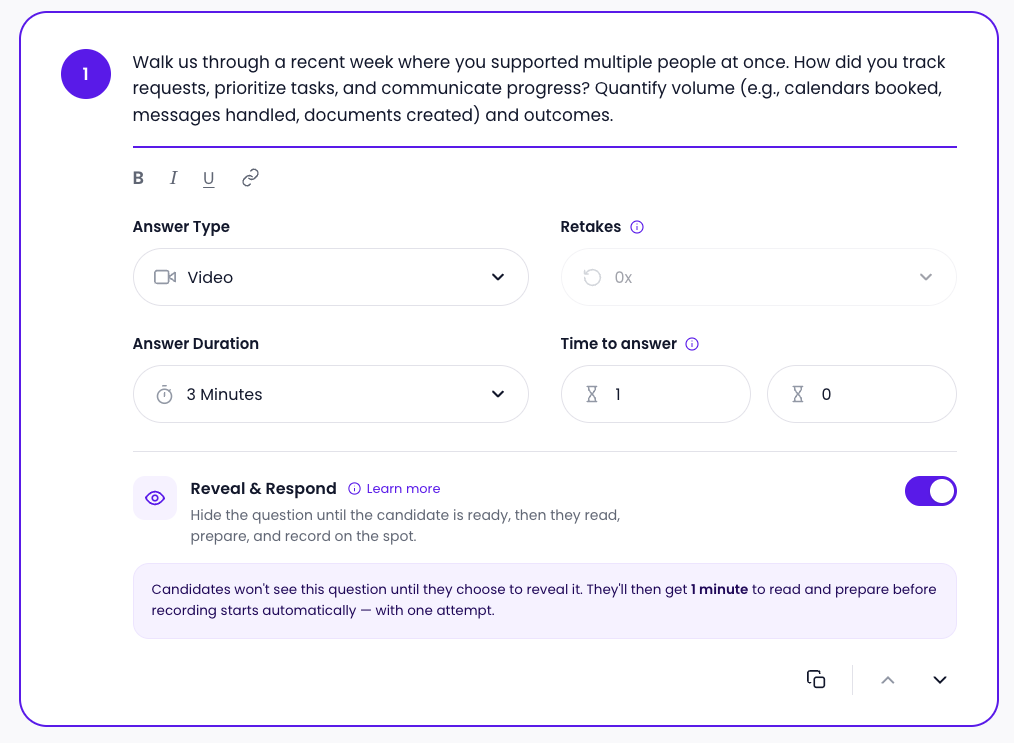
- Set Time to answer. This is required before Reveal and Respond can be turned on. If it is missing, a tooltip will prompt you to add thinking time.
- Turn on Reveal and Respond for that question.
Retakes are set to 0 for Reveal & Respond question. This is the default and cannot be changed.
Reveal and Respond is set at the question level, so you can turn it on for some questions and leave others as standard.
What candidates see
When a candidate reaches a Reveal and Respond question:
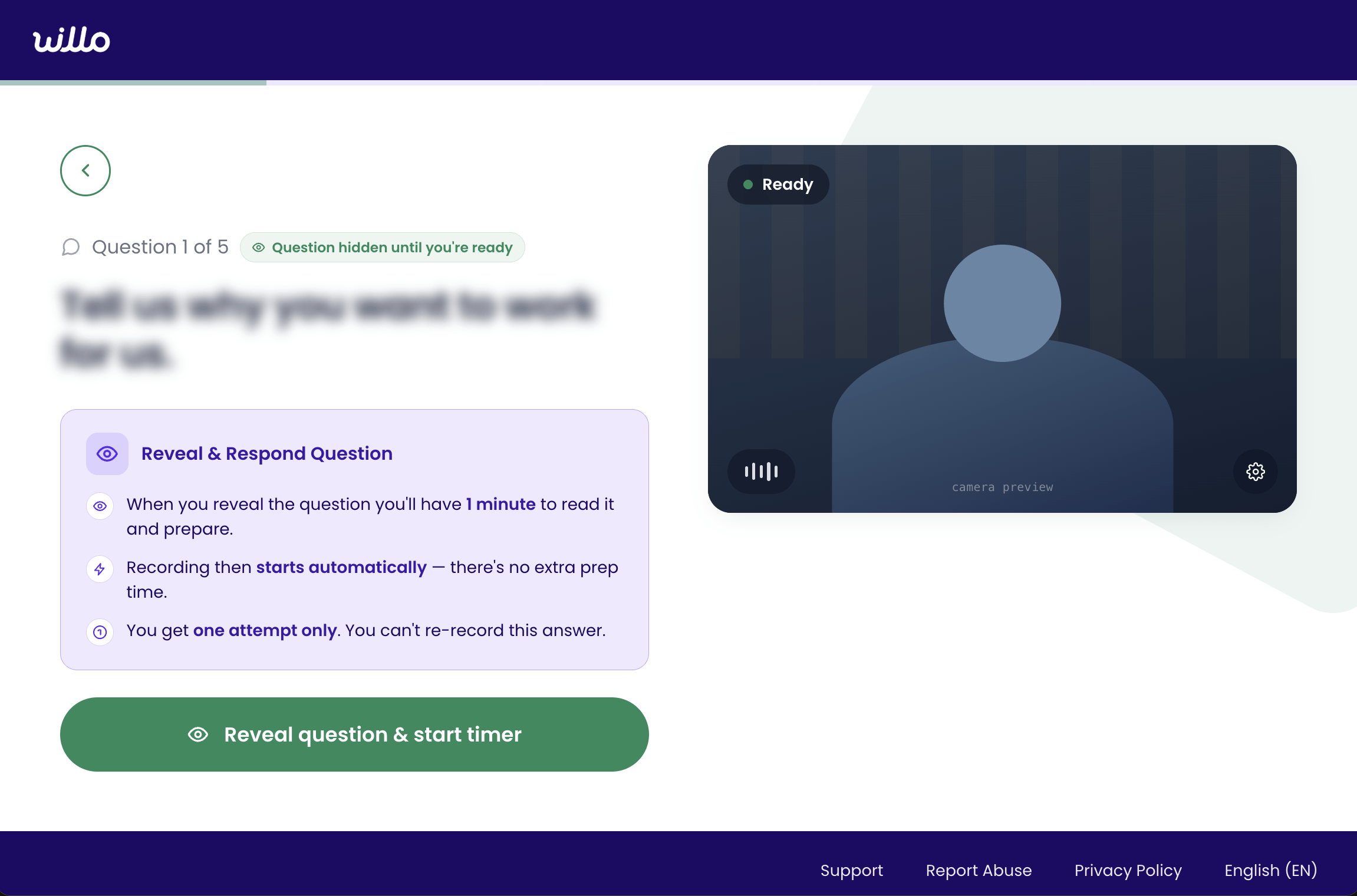
- The question is hidden until they choose to view it.
- A screen tile show them the time to answer and confirms they will get one attempt.
- When they select Reveal question, a countdown timer starts, followed by recording starting automatically.
- The candidate records their response once. There is no option to retake.
Questions without Reveal and Respond enabled work as normal, with no hidden countdown or single-attempt restriction.
Common questions
Can I use Reveal and Respond on any question type?
No. It is only available for video and audio questions.
Why can't I turn off retakes manually?
Retakes are automatically set to zero when Reveal and Respond is turned on. This is by design, since allowing retakes would undermine the purpose of the feature.
Do I need to enable this for every question?
No. Reveal and Respond is set per question, so you can apply it only where it is needed.
Best practices
- Use Reveal and Respond for questions where you want to assess a candidate's unprepared, spontaneous response.
- Keep standard settings for questions where planning or drafting an answer is appropriate.
- Set a realistic time to answer, so candidates have enough thinking time without the question feeling rushed.
Adding a Video Question to your assessment?
When you add a Video Question, allow enough 'Time to Answer' for candidates to view the video in its entirety. Recording starts automatically once the time is up, at which point the Loom video can no longer be accessed.
Need more help?
If you need further assistance, contact our support team using the chat icon in the bottom-right corner of any page. You can also chat with Wilma, our AI support agent, for immediate assistance.